
mFAX - Fax from Phone
octagon labBusiness
4.6102.00 Reviews
- Version
- 1.2.15
- Installs
- 10.00K
- Age Rating
- Everyone
Screenshots
Our Review of mFAX - Fax from Phone
 Analysis by Appyee
I usually think of faxing as one of those tasks that belongs to an office with a dedicated machine, a stack of paper, and a phone line. mFAX - Fax from Phone takes a different approach: it turns an Android phone into a place where I can prepare and send fax documents without keeping a physical fax machine nearby. That makes it especially interesting for people who only need fax occasionally but still deal with forms, signed paperwork, records, or business documents.
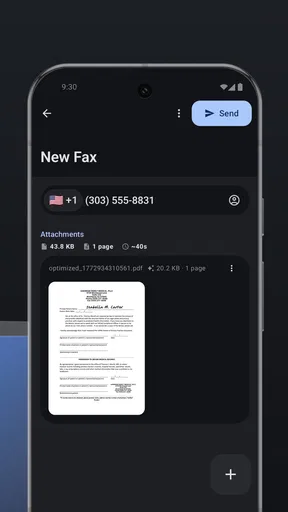
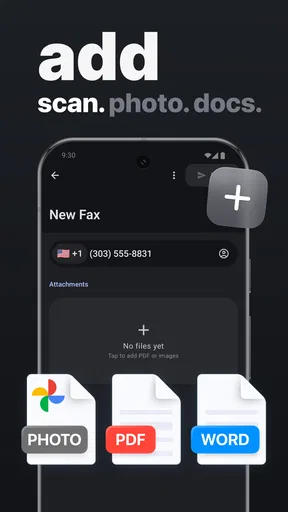
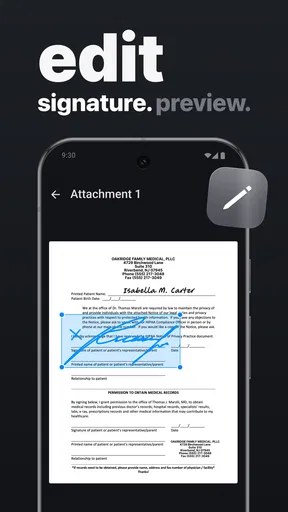
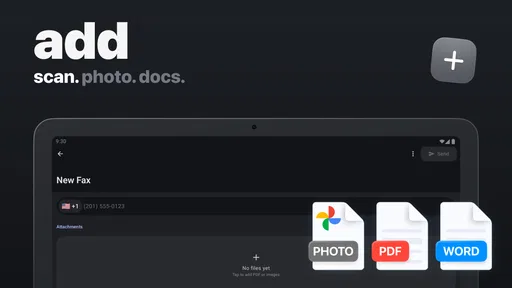
After spending time with this Business app, I found its main appeal easy to understand. It is aimed at the moment when someone says, “I need to fax this now,” while standing away from an office machine. The workflow centers on getting a document into a usable format, checking it on the phone, and sending it through the app. It supports PDF, DOC, and JPG files, which covers many of the formats people already keep on a phone.
The app is free to install, and its content rating is Everyone, so it is presented as a broadly accessible utility rather than a specialist business tool. The developer is octagon lab. Its current version is 1.2.15, and it runs on Android 8.0 or newer. The published average is 4.6 from around 935 ratings, with more than 10K installs, which suggests that it has found a practical audience without pretending to replace every part of a traditional office system.
What to expect before sending your first fax
The most important thing to understand is that mFAX is not simply a document viewer with a fax button. The quality of the final transmission depends on the document you start with. A clean PDF made from a proper digital file is usually a better starting point than a dim photograph of a wrinkled page. The app can help bring the material together on a phone, but it cannot completely repair an unreadable original.
I would approach the first use as a short preparation exercise rather than a one-tap emergency fix. Have the recipient’s fax number ready, decide which file you need, and inspect every page before sending. This is particularly important for forms with small boxes, signatures, handwritten notes, or fine print. A document that looks acceptable in a thumbnail can become difficult to read when it is transmitted.
The store summary emphasizes scanning and sending PDF, DOC, and JPG files, so those formats are the natural starting points. If the document is already on your phone, you can avoid unnecessary printing. If it is on paper, the phone becomes the capture device. That distinction matters: importing a clean file is generally less work than creating a scan, and it also reduces the chance of shadows, tilted pages, or cropped edges.
There is also a financial point to keep in mind. The app itself is free, but in-app purchases range from $5.99 to $64.99 per item. I would not treat the free installation as proof that every fax is free. Before confirming a meaningful transmission, check the purchase screen carefully and make sure you understand what the selected item covers. For someone who faxes once every few months, that cost structure may be less attractive than a service offering a small one-off charge.
That does not make the app unsuitable. It simply changes who benefits most. If you need a fax urgently and do not have access to a machine, paying inside a mobile app may be worthwhile because it saves a trip and avoids buying equipment. If you send large batches every week, a dedicated business fax service with predictable billing may be easier to manage.
One useful habit is to create a small “fax-ready” folder on your phone before opening the app. Keep the final document there, not several drafts with names such as “form-new,” “form-new2,” and “form-final.” That simple step reduces the most common mobile mistake: selecting an earlier version with a missing signature or outdated page.
Getting ready on Android
On a compatible Android phone, I would begin by locating the document rather than immediately exploring every option. Check whether it is stored locally, in a document app, or in a photo gallery. A DOC file may need a quick visual inspection in the app that normally opens it, while a JPG should be checked for glare and focus. A PDF deserves a page-by-page look, especially if it was created from a scanner or downloaded from a website.
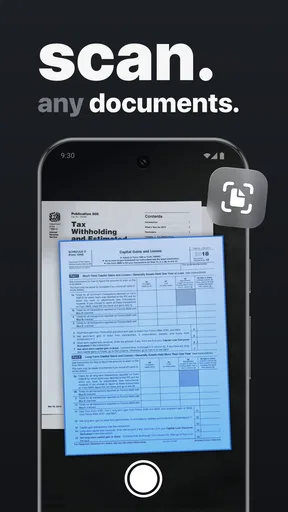
For paper documents, place the page on a flat, contrasting surface and capture it in even light. Keep the phone parallel to the page so the edges do not become dramatically skewed. This is not a glamorous tip, but it is one of the biggest differences between a scan that looks professional and one that forces the recipient to guess at numbers.
I would also remove unrelated pages before sending. Faxing an entire folder or a long email attachment because it is convenient can expose information the recipient does not need. Sending only the relevant pages makes the transmission easier to review and reduces the chance of sharing private material by accident.
The first setup should therefore be treated as document preparation, not account decoration. The meaningful question is whether the app can see the file you actually intend to send and whether that file remains legible on a small screen. Once those points are clear, the rest of the process feels much less intimidating.
Making the first successful send less stressful
My recommended first attempt is a short, non-sensitive document that you have already reviewed. Choose the file, confirm the recipient number slowly, and pause before the final action. Fax numbers are unforgiving: one incorrect digit can send a document to the wrong destination, and the phone interface makes it easy to tap through a number without noticing a mistake.
After selecting the document, look at the page order. This is an overlooked detail when several images or files are involved. The first page should identify what the recipient is receiving, and any cover information should appear where you expect it. If a signature page belongs at the end, make sure it has not moved to the beginning simply because it was the most recently selected image.
Once the recipient and file look right, follow the in-app sending flow and read the cost confirmation rather than treating it as a routine permission. The purchase range is broad enough that a quick tap could lead to a more expensive choice than intended. I find this is the point where a first-time user should slow down, not speed up.
A practical scenario would be a freelancer who receives a contract amendment while working from home. They can save the document to the phone, check that the signature page is present, and use mFAX instead of driving to a print-and-fax shop. Another example is a small business owner who has a photographed authorization form after a client meeting. If the image is clear and the recipient number is verified, the phone can become the quickest route to completion.
For the first meaningful success, do not judge the app only by how quickly the send button appears. Judge it by whether the recipient gets a readable, complete document. That mindset encourages careful preparation and prevents the common assumption that mobile convenience removes the need to inspect the source material.
Where first-time users may hesitate
The word “scan” can create the impression that every paper document will automatically become a polished digital file. In practice, the phone camera remains part of the equation. Folds, shadows, low light, colored paper, and handwriting near the edge can all reduce clarity. If the original is poor, I would first improve the photograph or use a dedicated scanning tool, then bring the resulting file into the fax workflow.
Another possible confusion is the difference between importing a document and creating one. A DOC file may be suitable for sending, but its appearance can depend on how it was created. If the layout is important, I prefer converting or saving a stable PDF before transmission. That avoids surprises caused by fonts, page breaks, or formatting that changes between apps.
File selection can also be less obvious than it sounds. A phone may show recent images first, while the document you need is in a downloads or cloud folder. If the wrong file appears, do not assume the app cannot handle the correct one. Return to the phone’s file location and identify the exact copy before continuing. This is another reason to use clear filenames and keep only the final version in your working folder.
Cost is likely to be the biggest point of hesitation. Because mFAX has in-app purchases despite being free to install, I would recommend treating the first send as a purchase decision as well as a technical test. Users who fax only under pressure may accept that trade-off. Users who need a permanent office workflow should compare the total cost of repeated sends with a conventional provider, a local service, or a business plan designed for regular volume.
There is also a privacy trade-off that deserves attention. A fax app is convenient because the document travels through a phone-based service rather than a machine sitting in your office. That convenience means I would be selective about what I send and would avoid using a casual image when the paperwork contains highly sensitive information unless I had already reviewed the app’s current terms and the recipient’s handling process. The app’s Everyone rating describes its content classification, not the sensitivity of every document a user might choose to transmit.
Finally, a mobile fax is not automatically the best answer for collaborative work. If several colleagues need to edit, approve, archive, and track a document, a shared business document system may be more suitable. mFAX makes the sending step accessible; it is not a replacement for a complete records-management process.
Small workflow improvements that make a real difference
My first non-obvious recommendation is to prepare a cover page or opening note outside the rush of the send itself. Even when the recipient knows you, a clear first page with the sender’s name, contact details, and the purpose of the transmission can reduce confusion. It also gives the recipient a quick way to identify the document if pages become separated.
Second, keep an untouched copy of the exact file you sent. Do not rely on memory or on the app being the only place where the document exists. Save the final PDF, DOC, or JPG with a date and recipient label in your own storage. That makes follow-up much easier if the recipient says a page was missing or asks you to resend the same material.
Third, inspect photographs at full size before importing them. A page can look sharp in the gallery preview but reveal blur around a signature or a number when enlarged. I would rather retake one page than discover later that a recipient cannot read a critical line. This is especially valuable for forms where a single digit determines whether the paperwork can be processed.
Fourth, separate “send now” documents from archival documents. If a file contains several pages for your records but only two are needed by the recipient, create a smaller sending copy. This reduces accidental disclosure and makes the recipient’s job easier. It also helps you notice missing pages because the intended packet has a clear beginning and end.
These habits are not flashy features, but they are where a phone fax workflow either becomes dependable or remains frustrating. The app can shorten the distance between a document and its destination; careful preparation determines whether that shortcut actually saves time.
How it compares with a fax machine and other options
Compared with a physical fax machine, mFAX wins on access. I do not need to find a machine, connect a phone line, print a document first, or remain in the same room as office equipment. For remote workers, students dealing with administrative paperwork, and small businesses without a permanent office, that difference is substantial.
A machine still has advantages for high-volume work. It is familiar in environments where staff already know the paper path, and it may fit an established filing routine. A phone app is less appealing when dozens of pages must be processed repeatedly or when an organization needs centralized oversight rather than one person sending from one handset.
Compared with email, the choice depends on the recipient. Email is usually more convenient when the other party accepts attachments and wants an easy digital record. Fax remains useful when an office specifically requests it or when its workflow is built around fax numbers. mFAX does not make fax universally better; it makes fax less dependent on owning the traditional equipment.
Compared with a dedicated scanning app, mFAX has a narrower purpose. A scanning app may offer more control over page cleanup, text recognition, naming, and long-term document organization. I would use that kind of tool first when the source is a difficult paper original, then send the cleaned document through mFAX. For a simple, already-digital file, adding another app may be unnecessary.
Compared with a subscription-oriented online fax platform, this app may appeal more to occasional users who want a phone-centered workflow. A larger service may be a better choice for teams, recurring schedules, administration, or predictable monthly usage. The right option depends less on the novelty of faxing from a phone and more on how often you send, how much oversight you need, and how sensitive the documents are.
Who should use it and who should look elsewhere
I think mFAX is a good fit for someone who needs fax capability without buying or maintaining a machine. It is also useful for people who already keep documents on their Android phone and want to avoid printing simply to transmit them. The combination of PDF, DOC, and JPG support makes it relevant to everyday paperwork rather than only to one narrow office format.
It is less convincing for a company that needs shared access, detailed internal controls, predictable high-volume billing, or a long-term archive. In that situation, I would compare it with a dedicated business fax provider before making it part of the official workflow. I would also look elsewhere if most of your documents require heavy scanning cleanup, optical character recognition, or extensive editing before they can be sent.
People who fax only once in a great while should pay particular attention to the purchase screen. The free download lowers the barrier to trying the workflow, but the in-app purchase range means the eventual cost matters. Someone who values immediate convenience may find it reasonable; someone who is comparing every transmission against a local shop should do that calculation first.
The app is also not a substitute for checking the recipient’s instructions. Some organizations require a cover page, a specific department number, or a particular document order. A successful send from the phone does not guarantee that the receiving office will accept the paperwork if its internal requirements are different.
My next-step recommendation
If you are new to mobile faxing, I would start with one ordinary document and treat the first session as a rehearsal. Confirm the Android version, locate the final file, inspect each page, verify the number, and read the purchase details before sending. That sequence is simple, but it removes most of the avoidable friction.
Once the first send is complete, keep a repeatable checklist in your notes: recipient number, required cover information, page count, file name, and the place where you stored the sent copy. This is more useful than relying on the app alone, particularly when you need to repeat a transmission weeks later.
My overall view is positive but practical. mFAX from octagon lab solves a very specific problem: getting a fax out when a traditional machine is inconvenient or unavailable. Its free entry point, support for common document formats, and phone-based workflow make that problem easier to approach. The real limitations are equally clear: document quality still matters, purchase choices deserve attention, and frequent or highly managed business use may call for a more specialized service.
For a first-time user, the reassuring part is that the process does not require you to become an office-equipment expert. Prepare a clean file, check what you are sending, and slow down at the recipient and payment steps. If that matches the kind of faxing you actually do, this is a convenient tool for occasional, on-the-go business paperwork rather than an unnecessary machine sitting in a corner.
Verdict
Strengths of mFAX - Fax from Phone
- Send faxes directly from your Android or iPhone without a fax machine.
- Supports common document formats, including PDF and image files.
- Useful for occasional business, legal, medical, or administrative documents.
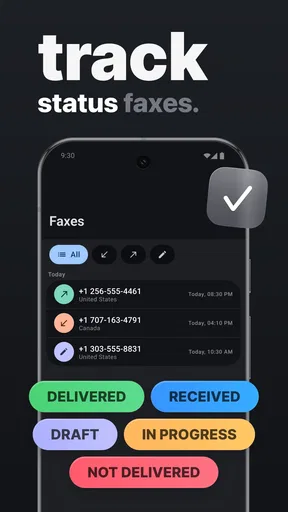
- Lets you track fax progress and review delivery status from the app.
- Mobile access makes faxing possible while traveling or away from the office.
Limitations of mFAX - Fax from Phone
- Fax pages and credit packages can become expensive for frequent users.
- A stable internet connection is required to upload and send documents.
- Recipient fax compatibility and international coverage may vary by region.
- Scanned photos may need cropping or adjustments for clear, readable results.
- Sensitive documents are handled through a third-party online fax service.
Similar Picks in This Category
View All
LinkedIn: Community & Network
LinkedIn3.8

Zoom Workplace
zoom.com4.1

Microsoft Teams
Microsoft Corporation4.6

Meta Business Suite
Meta Platforms, Inc.4.6

Webex Meetings
Cisco Systems, Inc.4.5

TeamViewer Remote Control
TeamViewer4.4
Frequently Asked Questions
What is mFAX - Fax from Phone, and how does it work?
mFAX - Fax from Phone is a mobile faxing app designed to let you send documents directly from an Android or iOS device. You can typically import files from your phone, cloud storage, photos, or email, review the pages, enter the recipient’s fax number, and submit the transmission without using a traditional fax machine. The exact workflow and available features may vary by device and app version.
Which document types can I send with mFAX - Fax from Phone?
The app is intended for sending common business and personal documents, such as PDFs, scanned pages, photographs, and files created with office applications. Before sending an important document, check how the app handles multiple pages, image quality, page orientation, and file size. Converting a document to PDF and reviewing every page beforehand can help prevent missing content or an unreadable fax.
Does mFAX - Fax from Phone require payment or a subscription?
Faxing services commonly use credits, per-fax charges, subscriptions, or a combination of these options rather than offering unlimited free transmissions. mFAX may also provide in-app purchases depending on your region and platform. Review the current pricing, credit expiration rules, subscription renewal terms, and cancellation instructions in the app store listing before sending a fax, especially if you only need the service occasionally.
How can I know whether my fax was successfully delivered?
After submitting a fax, the app may display a transmission status such as processing, sent, delivered, or failed. Some services also provide a confirmation report or notification, although delivery confirmation does not necessarily mean that the recipient has read the document. Keep the confirmation details for important paperwork, and verify the recipient’s fax number carefully because an incorrect number can result in a failed or misdirected transmission.
Is mFAX - Fax from Phone safe for confidential documents?
If you plan to fax medical, financial, legal, or other sensitive information, review the app’s privacy policy, security practices, permissions, and data-handling disclosures before uploading anything. Use a secure internet connection, avoid sharing your account, and double-check the destination number. You should also confirm whether the service meets any industry or organizational requirements that apply to your documents, since mobile fax apps can differ in compliance and retention policies.
